
Docker Model Runner 간편 가이드: 명령어 및 예제
Docker Model Runner 명령어의 빠른 참조
Docker 모델 러너 (DMR)는 2025년 4월에 도입된 Docker의 공식 솔루션으로, 로컬에서 AI 모델을 실행하는 데 사용됩니다. 이 체크리스트는 모든 필수 명령어, 구성 및 최선의 실천 방법에 대한 빠른 참조를 제공합니다.
설치
Docker Desktop
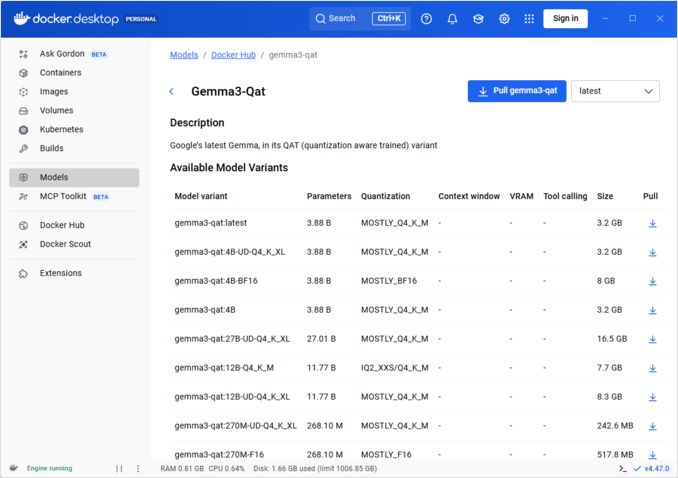
GUI를 통해 Docker 모델 러너를 활성화하십시오:
- Docker Desktop을 열고
- 설정 → AI 탭으로 이동
- Docker 모델 러너 활성화를 클릭
- Docker Desktop을 재시작
/home/rg/prj/hugo-pers/content/post/2025/10/docker-model-runner-cheatsheet/docker-model-runner_w678.jpg
Docker 엔진 (Linux)
플러그인 패키지를 설치하십시오:
# Ubuntu/Debian
sudo apt-get update
sudo apt-get install docker-model-plugin

# Fedora/RHEL
sudo dnf install docker-model-plugin

# Arch Linux
sudo pacman -S docker-model-plugin
설치를 확인하십시오:
docker model --help
Docker의 NVIDIA RTX 지원
GPU에서 LLM을 실행하도록 하기 위해 nvidia-container-toolkit을 설치하십시오:
distribution=$(. /etc/os-release;echo $ID$VERSION_ID)
curl -fsSL https://nvidia.github.io/libnvidia-container/gpgkey | sudo gpg --dearmor -o /usr/share/keyrings/nvidia-container-toolkit-keyring.gpg
curl -s -L https://nvidia.github.io/libnvidia-container/stable/deb/nvidia-container-toolkit.list | sed 's#deb https://#deb [signed-by=/usr/share/keyrings/nvidia-container-toolkit-keyring.gpg] https://#g' | sudo tee /etc/apt/sources.list.d/nvidia-container-toolkit.list
sudo apt-get update
sudo apt-get install -y nvidia-container-toolkit
sudo systemctl restart docker
그런 다음 --gpus all을 사용하여 컨테이너를 실행할 수 있습니다:
docker run --rm --gpus all <image> <command>
컨테이너가 GPU를 볼 수 있는지 확인하십시오:
docker run --rm --gpus all nvidia/cuda:12.2.2-base-ubi8 nvidia-smi
Docker 모델 러너에 NVIDIA 지원 추가
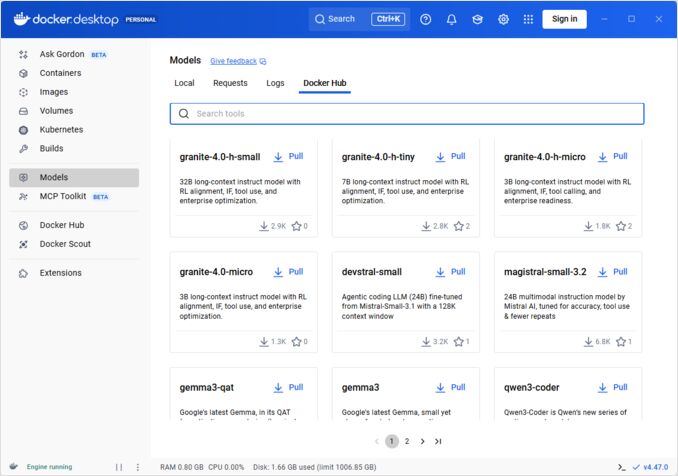
Docker 모델 러너는 명시적인 GPU 구성이 필요합니다. 표준 docker run 명령과 달리 docker model run은 --gpus 또는 -e 플래그를 지원하지 않습니다. 대신 다음을 수행해야 합니다:
- Docker 데몬을 기본적으로 NVIDIA 런타임으로 구성
먼저 nvidia-container-runtime이 설치된 위치를 확인하십시오:
which nvidia-container-runtime
이 명령은 일반적으로 /usr/bin/nvidia-container-runtime을 출력합니다. 이 경로를 아래 구성에 사용하십시오.
/etc/docker/daemon.json을 생성하거나 업데이트하십시오:
sudo tee /etc/docker/daemon.json > /dev/null << 'EOF'
{
  "default-runtime": "nvidia",
  "runtimes": {
    "nvidia": {
      "path": "/usr/bin/nvidia-container-runtime",
      "runtimeArgs": []
    }
  }
}
EOF
참고: which nvidia-container-runtime이 다른 경로를 반환하는 경우 JSON 구성에서 "path" 값을 적절히 업데이트하십시오.
Docker를 재시작하십시오:
sudo systemctl restart docker
구성을 확인하십시오:
docker info | grep -i runtime
출력에서 Default Runtime: nvidia를 확인해야 합니다.
- GPU 지원을 포함한 Docker 모델 러너 재설치
GPU 지원을 명시적으로 포함하여 Docker 모델 러너를 설치하거나 재설치해야 합니다:
# 현재 러너 중지
docker model stop-runner

# CUDA GPU 지원으로 재설치
docker model reinstall-runner --gpu cuda
이렇게 하면 CPU 전용 버전 대신 CUDA 지원 버전(docker/model-runner:latest-cuda)이 다운로드됩니다.
- GPU 접근 확인
Docker 모델 러너 컨테이너가 GPU에 접근할 수 있는지 확인하십시오:
docker exec docker-model-runner nvidia-smi
- GPU를 사용한 모델 테스트
모델을 실행하고 로그를 확인하여 GPU 사용 여부를 확인하십시오:
docker model run ai/qwen3:14B-Q6_K "who are you?"
로그에서 GPU 확인:
docker model logs | grep -i cuda
다음과 같은 메시지를 확인해야 합니다:
using device CUDA0 (NVIDIA GeForce RTX 4080)offloaded 41/41 layers to GPUCUDA0 model buffer size = 10946.13 MiB
참고: 이미 GPU 지원 없이 Docker 모델 러너를 설치한 경우, --gpu cuda 플래그를 사용하여 다시 설치해야 합니다. Docker 데몬만 구성하는 것만으로는 충분하지 않으며, 러너 컨테이너 자체가 CUDA 지원 버전이어야 합니다.
사용 가능한 GPU 백엔드:
cuda- NVIDIA CUDA (가장 일반적)rocm- AMD ROCmmusa- Moore Threads MUSAcann- Huawei CANNauto- 자동 감지 (기본값)none- CPU 전용
핵심 명령어
모델 끌어오기
Docker Hub에서 사전 패키징된 모델을 끌어오십시오:
# 기본 끌어오기
docker model pull ai/llama2

# 특정 버전 끌어오기
docker model pull ai/llama2:7b-q4

# 커스텀 레지스트리에서 끌어오기
docker model pull myregistry.com/models/mistral:latest

# 네임스페이스 내에서 사용 가능한 모델 목록 보기
docker search ai/
모델 실행
자동 API 제공과 함께 모델을 시작하십시오:
# 기본 실행 (상호작용)
docker model run ai/llama2 "What is Docker?"

# 서비스로 실행 (백그라운드)
docker model run -d
CLI를 통해 모델 실행 시 선택지가 많지 않습니다:
docker model run --help
Usage:  docker model run MODEL [PROMPT]

Run a model and interact with it using a submitted prompt or chat mode

Options:
      --color string                  Use colored output (auto|yes|no) (default "auto")
      --debug                         Enable debug logging
  -d, --detach                        Load the model in the background without interaction
      --ignore-runtime-memory-check   Do not block pull if estimated runtime memory for model exceeds system resources.
모델 목록 보기
다운로드된 모델 및 실행 중인 모델을 확인하십시오:
# 모든 다운로드된 모델 목록 보기
docker model ls

# 실행 중인 모델 목록 보기
docker model ps

# 상세 정보 포함하여 목록 보기
docker model ls --json

# 상세 정보 포함하여 목록 보기
docker model ls --openai

# 해시코드만 반환
docker model ls -q
모델 삭제
로컬 저장소에서 모델을 삭제하십시오:
# 특정 모델 삭제
docker model rm ai/llama2

# 강제 삭제 (실행 중인 경우에도)
docker model rm -f ai/llama2

# 사용되지 않은 모델 삭제
docker model prune

# 모든 모델 삭제
docker model rm $(docker model ls -q)
모델 컨텍스트 크기 구성
CLI를 통해 특정 요청에 대한 컨텍스트 크기를 지정할 수 없습니다.
기본적으로 모델 컨텍스트 크기를 제어할 수 있는 방법은 세 가지뿐입니다:
-
원하는 하드코딩된 컨텍스트 크기를 지정하여 모델을 자체적으로 패키징합니다. (다음 섹션에서 이에 대해 더 자세히 설명합니다.)
-
docker model runner구성 명령을 사용하여--context-size매개변수를 지정합니다:
docker model configure --context-size=10000 ai/gemma3-qat:4B
이후 curl을 사용하여 호출할 수 있지만, docker model run...은 구성 내용을 무시합니다.
docker-compose.yaml파일에서, 하지만docker-model-runner이미지를 이 방법으로 사용할 수는 없으며, 이는 모델에 하드코딩된 컨텍스트 크기 4096을 전달합니다.
...
models:
  llm_model:
    model: ai/gemma3-qat:4B
    context_size: 10240
...
자세한 내용은 다음 게시물을 참조하십시오: DMR에서 컨텍스트 크기 지정
커스텀 모델 패키징
GGUF에서 OCI 아티팩트 생성
자신의 GGUF 모델을 패키징하십시오:
# 기본 패키징
docker model package --gguf /path/to/model.gguf myorg/mymodel:latest

# 메타데이터와 함께 패키징
docker model package \
  --gguf /path/to/model.gguf \
  --label "description=Custom Llama model" \
  --label "version=1.0" \
  myorg/mymodel:v1.0

# 패키징 및 푸시를 한 번에
docker model package --gguf /path/to/model.gguf --push myorg/mymodel:latest

# 커스텀 컨텍스트 크기와 함께 패키징
docker model package \
  --gguf /path/to/model.gguf \
  --context 8192 \
  myorg/mymodel:latest
모델 출판
레지스트리에 모델을 푸시하십시오:
# Docker Hub에 로그인
docker login

# Docker Hub에 푸시
docker model push myorg/mymodel:latest

# 프라이빗 레지스트리에 푸시
docker login myregistry.com
docker model push myregistry.com/models/mymodel:latest

# 태그 및 푸시
docker model tag mymodel:latest myorg/mymodel:v1.0
docker model push myorg/mymodel:v1.0
API 사용
OpenAI 호환 엔드포인트
Docker 모델 러너는 OpenAI 호환 API를 자동으로 노출합니다:
# API와 함께 모델 시작
docker model run -d -p 8080:8080 --name llm ai/llama2

# 채팅 완성
curl http://localhost:8080/v1/chat/completions \
  -H "Content-Type: application/json" \
  -d '{
    "model": "llama2",
    "messages": [{"role": "user", "content": "Hello!"}]
  }'

# 텍스트 생성
curl http://localhost:8080/v1/completions \
  -H "Content-Type: application/json" \
  -d '{
    "model": "llama2",
    "prompt": "Once upon a time",
    "max_tokens": 100
  }'

# 스트리밍 응답
curl http://localhost:8080/v1/chat/completions \
  -H "Content-Type: application/json" \
  -d '{
    "model": "llama2",
    "messages": [{"role": "user", "content": "Tell me a story"}],
    "stream": true
  }'

# 사용 가능한 모델 목록을 API를 통해 보기
curl http://localhost:8080/v1/models

# 모델 정보
curl http://localhost:8080/v1/models/llama2
Docker Compose 구성
기본 Compose 파일
version: '3.8'

services:
  llm:
    image: docker-model-runner
    model: ai/llama2:7b-q4
    ports:
      - "8080:8080"
    environment:
      - MODEL_TEMPERATURE=0.7
    volumes:
      - docker-model-runner-models:/models
    deploy:
      resources:
        reservations:
          devices:
            - driver: nvidia
              count: all
              capabilities: [gpu]

volumes:
  docker-model-runner-models:
    external: true
다중 모델 설정
version: '3.8'

services:
  llama:
    image: docker-model-runner
    model: ai/llama2
    ports:
      - "8080:8080"

  mistral:
    image: docker-model-runner
    model: ai/mistral
    ports:
      - "8081:8080"

  embedding:
    image: docker-model-runner
    model: ai/nomic-embed-text
    ports:
      - "8082:8080"
더 고급의 Docker Compose 구성 및 명령어는 우리의 Docker Compose 체크리스트를 참조하십시오. 이 체크리스트는 네트워킹, 볼륨 및 오케스트레이션 패턴을 다룹니다.
환경 변수
모델 행동을 환경 변수로 구성하십시오:
# 온도 (0.0-1.0)
MODEL_TEMPERATURE=0.7

# Top-p 샘플링
MODEL_TOP_P=0.9

# Top-k 샘플링
MODEL_TOP_K=40

# 최대 토큰
MODEL_MAX_TOKENS=2048

# GPU 레이어 수
MODEL_GPU_LAYERS=35

# 배치 크기
MODEL_BATCH_SIZE=512

# 스레드 수 (CPU)
MODEL_THREADS=8

# 자세한 로깅 활성화
MODEL_VERBOSE=true

# 인증을 위한 API 키
MODEL_API_KEY=your-secret-key
환경 변수와 함께 실행하십시오:
docker model run \
  -e MODEL_TEMPERATURE=0.8 \
  -e MODEL_API_KEY=secret123 \
  ai/llama2
GPU 구성
자동 GPU 감지
DMR은 자동으로 사용 가능한 GPU를 감지하고 사용합니다:
# 모든 GPU 사용
docker model run --gpus all ai/llama2

# 특정 GPU 사용
docker model run --gpus 0 ai/llama2

# 여러 특정 GPU 사용
docker model run --gpus 0,1,2 ai/llama2

# 메모리 제한이 있는 GPU 사용
docker model run --gpus all --memory 16g ai/llama2
CPU 전용 모드
GPU가 사용 가능할 때 CPU 추론을 강제로 실행하십시오:
docker model run --no-gpu ai/llama2
다중 GPU 텐서 병렬성
대규모 모델을 여러 GPU에 분산하여 실행하십시오:
docker model run \
  --gpus all \
  --tensor-parallel 2 \
  ai/llama2-70b
점검 및 디버깅
모델 세부 정보 보기
# 모델 구성 확인
docker model inspect ai/llama2

# 모델 레이어 보기
docker model history ai/llama2

# 모델 크기 및 메타데이터 확인
docker model inspect --format='{{.Size}}' ai/llama2
로그 및 모니터링
# 모델 로그 보기
docker model logs llm

# 실시간 로그 보기
docker model logs -f llm

# 마지막 100줄 보기
docker model logs --tail 100 llm

# 타임스탬프가 있는 로그 보기
docker model logs -t llm
성능 통계
# 리소스 사용량
docker model stats

# 특정 모델 통계
docker model stats llm

# JSON 형식 통계
docker model stats --format json
네트워킹
API 노출
# 기본 포트 (8080)
docker model run -p 8080:8080 ai/llama2

# 커스텀 포트
docker model run -p 3000:8080 ai/llama2

# 특정 인터페이스에 바인딩
docker model run -p 127.0.0.1:8080:8080 ai/llama2

# 여러 포트
docker model run -p 8080:8080 -p 9090:9090 ai/llama2
네트워크 구성
# 커스텀 네트워크 생성
docker network create llm-network

# 커스텀 네트워크에서 모델 실행
docker model run --network llm-network --name llm ai/llama2

# 기존 네트워크에 연결
docker model run --network host ai/llama2
보안
접근 제어
# API 키 인증으로 실행
docker model run \
  -e MODEL_API_KEY=my-secret-key \
  ai/llama2

# 인증을 사용하여
curl http://localhost:8080/v1/chat/completions \
  -H "Authorization: Bearer my-secret-key" \
  -H "Content-Type: application/json" \
  -d '{"model": "llama2", "messages": [...]}'
레지스트리 인증
# 프라이빗 레지스트리에 로그인
docker login myregistry.com -u username -p password

# 프라이빗 레지스트리에서 끌어오기
docker model pull myregistry.com/private/model:latest

# 자격 증명 도우미 사용
docker login --password-stdin < token.txt
최선의 실천
모델 선택
# 더 빠른 추론을 위해 양자화된 모델 사용
docker model pull ai/llama2:7b-q4     # 4비트 양자화
docker model pull ai/llama2:7b-q5     # 5비트 양자화
docker model pull ai/llama2:7b-q8     # 8비트 양자화

# 모델 변형 확인
docker search ai/llama2
리소스 관리
# 메모리 제한 설정
docker model run --memory 8g --memory-swap 16g ai/llama2

# CPU 제한 설정
docker model run --cpus 4 ai/llama2

# GPU 메모리 제한
docker model run --gpus all --gpu-memory 8g ai/llama2
건강 상태 확인
# 건강 상태 확인으로 실행
docker model run \
  --health-cmd "curl -f http://localhost:8080/health || exit 1" \
  --health-interval 30s \
  --health-timeout 10s \
  --health-retries 3 \
  ai/llama2
프로덕션 오케스트레이션
프로덕션 배포에 Kubernetes를 사용하는 경우, Docker 모델 러너 컨테이너는 표준 Kubernetes 매니페스트를 사용하여 오케스트레이션할 수 있습니다. 리소스 제한, 자동 확장 및 로드 밸런싱을 포함한 배포를 정의하십시오. 포괄적인 Kubernetes 명령어 참조 및 배포 패턴은 우리의 Kubernetes 체크리스트를 참조하십시오.
# 예시: Kubernetes 클러스터에 배포
kubectl apply -f llm-deployment.yaml

# 배포 확장
kubectl scale deployment llm --replicas=3

# 서비스로 노출
kubectl expose deployment llm --type=LoadBalancer --port=8080
문제 해결
일반적인 문제
모델이 시작되지 않음:
# 사용 가능한 디스크 공간 확인
df -h

# 상세한 오류 로그 확인
docker model logs --tail 50 llm

# GPU 사용 가능 여부 확인
nvidia-smi  # NVIDIA GPU에 대해
메모리 부족 오류:
# 더 작은 양자화된 모델 사용
docker model pull ai/llama2:7b-q4

# 컨텍스트 크기 축소
docker model run -e MODEL_CONTEXT=2048 ai/llama2

# 배치 크기 제한
docker model run -e MODEL_BATCH_SIZE=256 ai/llama端
느린 추론:
# GPU 사용량 확인
docker model stats llm

# GPU가 사용되고 있는지 확인
docker model logs llm | grep -i gpu

# GPU 레이어 수 증가
docker model run -e MODEL_GPU_LAYERS=40 ai/llama2
진단 명령어
# 시스템 정보
docker model system info

# 디스크 사용량
docker model system df

# 사용되지 않은 리소스 정리
docker model system prune

# 전체 정리 (모든 모델 제거)
docker model system prune -a
통합 예시
Python 통합
import openai

# Docker 모델 러너를 위한 클라이언트 구성
client = openai.OpenAI(
    base_url="http://localhost:8080/v1",
    api_key="not-needed"  # DMR은 기본적으로 키가 필요하지 않음
)

# 채팅 완성
response = client.chat.completions.create(
    model="llama2",
    messages=[
        {"role": "user", "content": "Hello!"}
    ]
)

print(response.choices[0].message.content)

# 스트리밍
stream = client.chat.completions.create(
    model="llama2",
    messages=[{"role": "user", "content": "Tell me a story"}],
    stream=True
)

for chunk in stream:
    if chunk.choices[0].delta.content:
        print(chunk.choices[0].delta.content, end="")
Bash 스크립트
#!/bin/bash

# 실행 중이지 않으면 모델 시작
if ! docker model ps | grep -q "llm"; then
    docker model run -d --name llm -p 8080:8080 ai/llama2
    echo "모델이 시작되기를 기다리고 있습니다..."
    sleep 10
fi

# API 호출
curl -s http://localhost:8080/v1/chat/completions \
  -H "Content-Type: application/json" \
  -d '{
    "model": "llama2",
    "messages": [{"role": "user", "content": "'"$1"'"}]
  }' | jq -r '.choices[0].message.content'
Node.js 통합
import OpenAI from 'openai';

const client = new OpenAI({
    baseURL: 'http://localhost:8080/v1',
    apiKey: 'not-needed'
});

async function chat(message) {
    const completion = await client.chat.completions.create({
        model: 'llama2',
        messages: [{ role: 'user', content: message }]
    });

    return completion.choices[0].message.content;
}

// 사용법
const response = await chat('Docker 모델 러너란 무엇인가요?');
console.log(response);
