
llama.cpp Quickstart with CLI and Server
How to Install, Configure, and Use the OpenCode
I keep coming back to llama.cpp for local inference—it gives you control that Ollama and others abstract away, and it just works. Easy to run GGUF models interactively with llama-cli or expose an OpenAI-compatible HTTP API with llama-server.
If you are still deciding between local, self-hosted, and cloud approaches, start with the pillar guide LLM Hosting in 2026: Local, Self-Hosted & Cloud Infrastructure Compared.
Why llama.cpp in 2026
llama.cpp is a lightweight inference engine with a bias toward:
- portability across CPUs and multiple GPU backends,
- predictable latency on a single machine,
- deployment flexibility, from laptops to on-prem nodes.
It shines when you want privacy and offline operation, when you need deterministic control over runtime flags, or when you want to embed inference into a larger system without running a full Python-heavy stack.
It is also helpful to understand llama.cpp even if you later choose a higher-throughput server runtime. For example, if your goal is maximum serving throughput on GPUs, you might also want to compare it to vLLM using:
vLLM Quickstart: High-Performance LLM Serving
and you can benchmark tool choices in:
Ollama vs vLLM vs LM Studio: Best Way to Run LLMs Locally in 2026?.
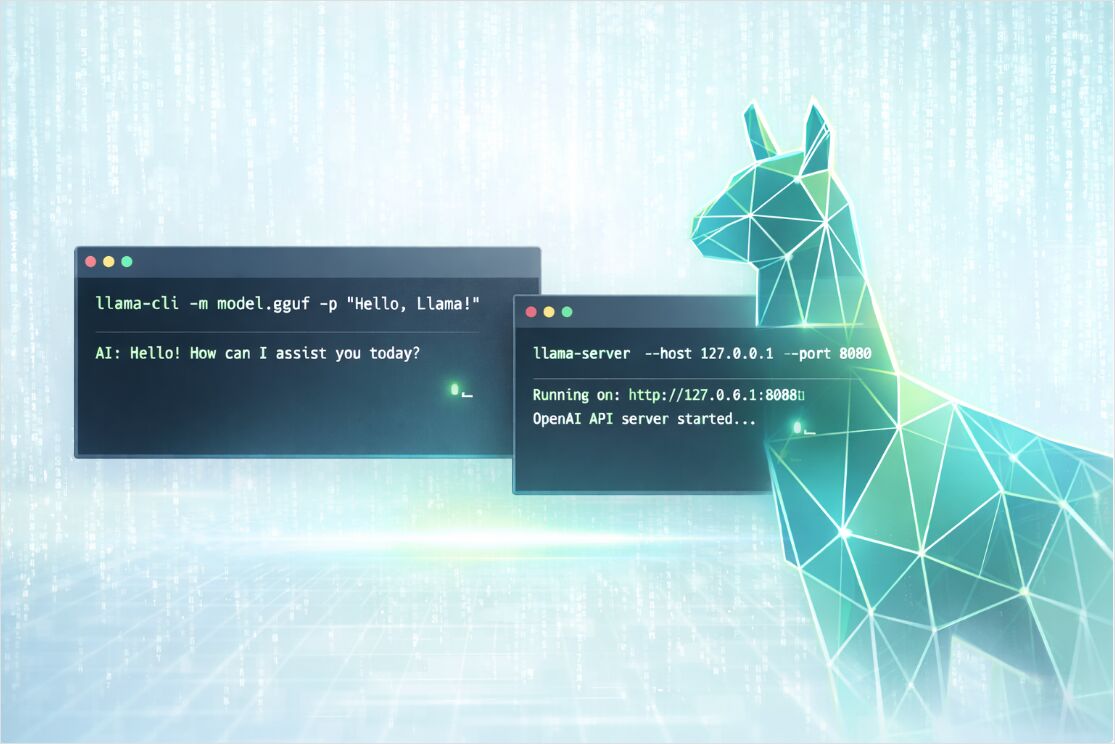
Install llama.cpp on Windows, macOS, and Linux
There are three practical install paths, depending on whether you want convenience, portability, or maximum performance.
Install via package managers
This is the fastest “get it running” option.
# macOS or Linux
brew install llama.cpp
# Windows
winget install llama.cpp
# macOS (MacPorts)
sudo port install llama.cpp
# macOS or Linux (Nix)
nix profile install nixpkgs#llama-cpp
Tip: after installing, verify the tools exist:
llama-cli --version
llama-server --version
Install via pre-built binaries
If you want a clean install without compilers, use the official pre-built binaries published in the llama.cpp GitHub releases. They typically cover multiple OS targets and multiple backends (CPU-only and GPU-enabled variants).
A common workflow:
# 1) Download the right archive for your OS and backend
# 2) Extract it
# 3) Run from the extracted folder

./llama-cli --help
./llama-server --help
Build from source for your exact hardware
If you care about squeezing the best performance out of your CPU/GPU backend, build from source with CMake.
git clone https://github.com/ggml-org/llama.cpp
cd llama.cpp

# CPU build
cmake -B build
cmake --build build --config Release
After build, binaries are typically here:
ls -la ./build/bin/
GPU builds in one command
Enable the backend that matches your hardware (examples shown for CUDA and Vulkan):
# NVIDIA CUDA
cmake -B build -DGGML_CUDA=ON
cmake --build build --config Release
# Vulkan
cmake -B build -DGGML_VULKAN=ON
cmake --build build --config Release
Ubuntu 24.04 + NVIDIA GPU: full build walkthrough
On Ubuntu 24.04 with an NVIDIA GPU, you need the CUDA toolkit and OpenSSL before building. Here is a tested sequence:
1. Install CUDA toolkit 13.1
wget https://developer.download.nvidia.com/compute/cuda/repos/ubuntu2404/x86_64/cuda-ubuntu2404.pin
sudo mv cuda-ubuntu2404.pin /etc/apt/preferences.d/cuda-repository-pin-600
wget https://developer.download.nvidia.com/compute/cuda/13.1.1/local_installers/cuda-repo-ubuntu2404-13-1-local_13.1.1-590.48.01-1_amd64.deb
sudo dpkg -i cuda-repo-ubuntu2404-13-1-local_13.1.1-590.48.01-1_amd64.deb
sudo cp /var/cuda-repo-ubuntu2404-13-1-local/cuda-*-keyring.gpg /usr/share/keyrings/
sudo apt-get update
sudo apt-get -y install cuda-toolkit-13-1
2. Add CUDA to your environment (append to ~/.bashrc):
# cuda toolkit
export PATH=/usr/local/cuda-13.1/bin:$PATH
export LD_LIBRARY_PATH=/usr/local/cuda-13.1/lib64:$LD_LIBRARY_PATH
Then run source ~/.bashrc or open a new terminal.
3. Install OpenSSL development headers (required for a clean build):
sudo apt update
sudo apt install libssl-dev
4. Build llama.cpp (from the directory containing your llama.cpp clone, with CUDA enabled):
cmake llama.cpp -B llama.cpp/build -DBUILD_SHARED_LIBS=OFF -DGGML_CUDA=ON
cmake --build llama.cpp/build --config Release -j --clean-first --target llama-cli llama-mtmd-cli llama-server llama-gguf-split
cp llama.cpp/build/bin/llama-* llama.cpp
This produces llama-cli, llama-mtmd-cli, llama-server, and llama-gguf-split in the llama.cpp directory.
You can also compile multiple backends and choose devices at runtime. This is useful if you deploy the same build onto heterogeneous machines.
Pick a GGUF model and a quantization
To run inference, you need a GGUF model file (*.gguf). GGUF is a single-file format that bundles model weights plus standardized metadata needed by engines like llama.cpp.
Two ways to get a model
Option A: Use a local GGUF file
Download or copy a GGUF into ./models/:
mkdir -p models
# Place your GGUF at models/my-model.gguf
Then run it by path:
llama-cli -m models/my-model.gguf -p "Hello! Explain what llama.cpp is." -n 128
Option B: Let llama.cpp download from Hugging Face
Modern llama.cpp builds can download from Hugging Face and keep files in a local cache. This is often the easiest workflow for quick experiments.
# Download a model from HF and run a prompt
llama-cli \
  --hf-repo ggml-org/tiny-llamas \
  --hf-file stories15M-q4_0.gguf \
  -p "Once upon a time," \
  -n 200
You can also specify the quant in the repo selector and let the tool select a matching file:
llama-cli \
  --hf-repo unsloth/phi-4-GGUF:q4_k_m \
  -p "Summarize the concept of quantization in one paragraph." \
  -n 160
If you need a fully offline workflow later, --offline forces cache usage and prevents network access.
Quantization choice for local inference
Quantization is the practical answer to the question “Which GGUF quantization should you choose for local inference” because it directly trades off quality, model size, and speed.
A pragmatic starting point:
- start with a Q4 or Q5 variant for CPU-first machines,
- move to higher precision (or less aggressive quantization) when you can afford the RAM or VRAM,
- when the model “feels dumb” for your task, the fix is often either a better model or a less aggressive quant, not only sampling tweaks.
Also remember context window matters: larger context sizes increase memory usage (sometimes dramatically), even when the GGUF file itself fits.
llama-cli quickstart and key parameters
llama-cli is the fastest way to validate that your model loads, your backend works, and your prompts behave.
Minimal run
llama-cli \
  -m models/my-model.gguf \
  -p "Write a short TCP vs UDP comparison." \
  -n 200
Interactive chat run
Conversation mode is designed for chat templates. It typically enables interactive behavior and formats prompts according to the model’s template.
llama-cli \
  -m models/my-model.gguf \
  --conversation \
  --system-prompt "You are a concise systems engineering assistant." \
  --ctx-size 4096
To end generation when the model prints a specific sequence, use a reverse prompt. This is especially useful in interactive mode.
Main llama-cli flags that matter
Rather than memorizing 200 flags, focus on the ones that dominate correctness, latency, and memory.
Model and download
| Goal | Flags | When to use |
|---|---|---|
| Load a local file | -m, --model |
You already have *.gguf |
| Download from Hugging Face | --hf-repo, --hf-file, --hf-token |
Fast experiments, automated caching |
| Force offline cache | --offline |
Airgapped or reproducible runs |
Context and throughput
| Goal | Flags | Practical note |
|---|---|---|
| Increase or reduce context | -c, --ctx-size |
Larger contexts cost more RAM or VRAM |
| Improve prompt processing | -b, --batch-size and -ub, --ubatch-size |
Batch sizes affect speed and memory |
| Tune CPU parallelism | -t, --threads and -tb, --threads-batch |
Match your CPU cores and memory bandwidth |
GPU offload and hardware selection
| Goal | Flags | Practical note |
|---|---|---|
| List available devices | --list-devices |
Helpful when multiple backends are compiled |
| Choose devices | --device |
Enables CPU plus GPU hybrid choices |
| Offload layers | -ngl, --n-gpu-layers |
One of the biggest speed levers |
| Multi-GPU logic | --split-mode, --tensor-split, --main-gpu |
Useful for multi-GPU hosts or uneven VRAM |
Sampling and output quality
| Goal | Flags | Good defaults to start |
|---|---|---|
| Creativity | --temp |
0.2 to 0.9 depending on task |
| Nucleus sampling | --top-p |
0.9 to 0.98 common |
| Token cutoff | --top-k |
40 is a classic baseline |
| Reduce repetition | --repeat-penalty and --repeat-last-n |
Especially helpful for small models |
Example workloads with llama-cli
Summarize a file, not just a prompt
llama-cli \
  -m models/my-model.gguf \
  --system-prompt "You summarize technical documents. Output five bullets max." \
  --file ./docs/incident-report.txt \
  -n 300
Make results more reproducible
When you are debugging prompts, fix the seed and reduce randomness:
llama-cli \
  -m models/my-model.gguf \
  -p "Extract key risks from this design note." \
  -n 200 \
  --seed 42 \
  --temp 0.2
llama-server quickstart with OpenAI compatible API
llama-server is a built-in HTTP server that can expose:
- OpenAI-compatible endpoints for chat, completions, embeddings, and responses,
- a Web UI for interactive testing,
- optional monitoring endpoints for production visibility.
Start a server with a local model
llama-server \
  -m models/my-model.gguf \
  -c 4096
By default, it listens on 127.0.0.1:8080.
To bind externally (for example inside Docker or a LAN), specify host and port:
llama-server \
  -m models/my-model.gguf \
  -c 4096 \
  --host 0.0.0.0 \
  --port 8080
Optional but important server flags
| Goal | Flags | Why it matters |
|---|---|---|
| Concurrency | --parallel |
Controls server slots for parallel requests |
| Better throughput under load | --cont-batching |
Enables continuous batching |
| Lock down access | --api-key or --api-key-file |
Authentication for API requests |
| Enable Prometheus metrics | --metrics |
Needed to expose /metrics |
| Reduce risk of prompt reprocessing | --cache-prompt |
Prompt cache behavior for latency |
If you run in containers, many settings can also be controlled through LLAMA_ARG_* environment variables.
Example API calls
Chat completions with curl
curl http://localhost:8080/v1/chat/completions \
  -H "Content-Type: application/json" \
  -H "Authorization: Bearer no-key" \
  -d '{
    "model": "gpt-3.5-turbo",
    "messages": [
      { "role": "system", "content": "You are a helpful assistant." },
      { "role": "user", "content": "Give me a quick llama.cpp checklist." }
    ],
    "temperature": 0.7
  }'
Tip for real deployments: if you set --api-key, you can send it via an x-api-key header (or keep using Authorization headers depending on your gateway).
OpenAI Python client targeting llama-server
With an OpenAI-compatible server, many clients can work by changing only base_url.
import openai

client = openai.OpenAI(
    base_url="http://localhost:8080/v1",
    api_key="sk-no-key-required",
)

resp = client.chat.completions.create(
    model="gpt-3.5-turbo",
    messages=[
        {"role": "system", "content": "You are a concise assistant."},
        {"role": "user", "content": "Explain threads vs batch size in llama.cpp."},
    ],
)

print(resp.choices[0].message.content)
Embeddings
OpenAI-compatible embeddings are exposed at /v1/embeddings, but the model must support an embedding pooling mode that is not none.
curl http://localhost:8080/v1/embeddings \
  -H "Content-Type: application/json" \
  -H "Authorization: Bearer no-key" \
  -d '{
    "input": ["hello", "world"],
    "model": "GPT-4",
    "encoding_format": "float"
  }'
If you run a dedicated embedding model, consider launching the server in embeddings-only mode:
llama-server \
  -m models/my-embedding-model.gguf \
  --embeddings \
  --host 127.0.0.1 \
  --port 8080
Performance, monitoring, and production hardening
The FAQ question “Which llama.cpp command line options matter most for speed and memory” becomes much easier when you treat inference like a system:
- Memory ceiling is usually the first constraint (RAM on CPU, VRAM on GPU).
- Context size is a major memory multiplier.
- GPU layer offload is often the fastest path to higher tokens per second.
- Batch sizes and threads can improve throughput but can also increase memory pressure.
For a deeper, engineering-first view, see: LLM Performance in 2026: Benchmarks, Bottlenecks & Optimization.
Monitoring llama-server with Prometheus and Grafana
llama-server can expose Prometheus-compatible metrics at /metrics when --metrics is enabled. This pairs naturally with Prometheus scrape configs and Grafana dashboards.
For dashboards and alerts specific to llama.cpp (and vLLM, TGI): Monitor LLM Inference in Production (2026): Prometheus & Grafana for vLLM, TGI, llama.cpp. Broader guides: Observability: Monitoring, Metrics, Prometheus & Grafana Guide and Observability for LLM Systems.
Basic hardening checklist
When your llama-server is reachable beyond localhost:
- use
--api-key(or--api-key-file) so requests are authenticated, - avoid binding to
0.0.0.0unless you need it, - consider TLS via the server’s SSL flags or terminate TLS at a reverse proxy,
- restrict concurrency with
--parallelto protect latency under load.
Troubleshooting quick wins
The model loads but answers are weird in chat
Chat endpoints are best when the model has a supported chat template. If outputs look unstructured, try:
- using
llama-cli --conversationplus an explicit--system-prompt, - verifying your model is an instruction or chat-tuned variant,
- testing using the server Web UI before wiring it into an app.
You hit out of memory
Reduce the context or choose a smaller quant:
- lower
--ctx-size, - reduce
--n-gpu-layersif VRAM is the issue, - switch to a smaller model or a more compressed quant.
It is slow on CPU
Start with:
--threadsequal to your physical cores,- moderate batch sizes,
- validating you installed a build that matches your machine (CPU features and backend).
